Mesh Ergonomic Office Chair: Lumbar, Headrest & 2D Arms
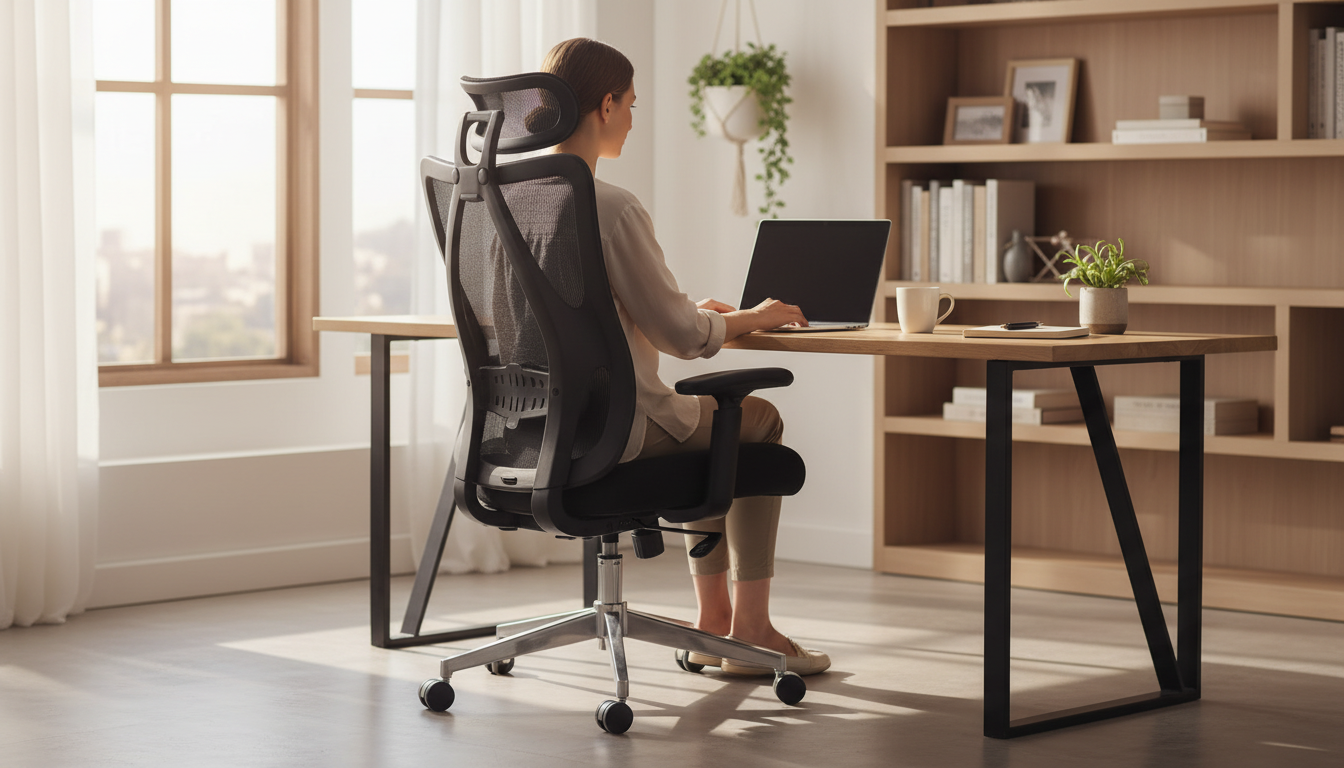
Ergonomic Mesh Office Chair Comfort That Holds Up All Day
A supportive office chair can make long work sessions feel steadier, cooler, and less fatiguing. This mesh design pairs breathable back support with adjustable contact points—lumbar, headrest, and armrests—so posture can stay aligned through focused tasks, calls, and creative work. The goal isn’t to “lock” the body into one position; it’s to create a stable baseline that makes it easier to sit neutrally, shift often, and still feel supported.
What makes this chair comfortable for long sessions
Comfort during extended sitting usually comes down to two things: pressure management and consistent support. Mesh chairs handle both differently than thick foam seats—and when the fit is dialed in, many people notice less heat buildup and fewer posture collapses late in the day.
- Mesh back promotes airflow to reduce heat buildup during extended sitting, especially in warmer rooms or during intense work blocks.
- Lumbar support helps maintain the natural curve of the lower back and discourages slouching that often shows up after an hour or two.
- Adjustable headrest supports the neck when leaning back or during short breaks between tasks, which can take pressure off the upper spine.
- 2D armrests help reduce shoulder tension by bringing forearms to a relaxed height and width instead of letting shoulders “float” upward.
- Balanced support encourages a neutral sitting position for desk work, gaming, and study—without feeling overly rigid.
Adjustments to dial in a better fit
Small changes tend to beat big overcorrections. Set one adjustment, use it for 10–15 minutes, then fine-tune. For shared spaces, it also helps to keep a quick “reset routine” so each person can get comfortable quickly.
- Start with seat height so feet rest flat and knees sit near a 90° angle.
- Set lumbar contact so it feels supportive without pushing the hips forward.
- Position armrests so elbows rest lightly and shoulders remain down (no shrugging).
- Adjust headrest so it meets the curve of the neck rather than pressing the head forward.
- Re-check alignment after 10–15 minutes; small tweaks often beat big changes.
- For multi-user spaces, mark preferred settings to speed up daily setup.
Quick adjustment checklist
| Adjustment | Goal | Common sign it needs tweaking |
|---|---|---|
| Seat height | Feet flat, steady base | Toes dangling or pressure behind knees |
| Lumbar support | Lower-back curve supported | Slouching or aching low back |
| 2D armrests (height/width) | Forearms relaxed, shoulders down | Neck/shoulder tension or elbows flaring out |
| Headrest | Neck supported when reclining | Chin jutting forward or head pushing back uncomfortably |
Lumbar support: what to look for day to day
Lumbar support should feel like a gentle “filling in” of the natural lower-back curve. If it feels like a hard bump, it’s usually positioned too high, too deep, or set too aggressively.
- Support should meet the lower back without creating a hard point.
- A good setting feels present while sitting upright, not only when leaning back.
- If the chair is shared, aim for adjustability that accommodates different torso lengths.
- Pair lumbar support with regular posture resets: stand, walk, and stretch briefly each hour when possible.
- If back discomfort persists, check monitor height and keyboard distance—chair support works best as part of a complete workstation setup.
For practical ergonomics guidance that goes beyond the chair itself, refer to OSHA’s Computer Workstations eTool and the Mayo Clinic office ergonomics guide.
Headrest and 2D arms: reducing neck and shoulder strain
Neck and shoulder fatigue often builds when the upper body is subtly working to “hold itself up” for hours. A supportive headrest and well-positioned armrests can reduce that constant micro-effort, especially during call-heavy days and creative sessions.
- Headrest support is most helpful during recline, reading, or short recovery breaks between tasks.
- Armrests should support forearms without forcing wrists to bend upward while typing.
- If armrests bump the desk, lower them slightly or bring the chair closer and adjust keyboard placement.
- Wide-set arms can help broader frames; narrow adjustments can help keep elbows closer for typing-focused work.
- For frequent calls, a comfortable head/neck position can reduce the urge to crane forward.
Mesh seating: airflow, feel, and maintenance
Mesh tends to feel more “even” than plush cushions. Instead of sinking in, it supports across a wider area, which can be helpful for long blocks of sitting—particularly if overheating has been an issue with padded chairs.
Who this chair tends to suit best
Setup tips for a healthier workstation
For more context on reducing work-related strain, see NIOSH resources on ergonomics and musculoskeletal disorders.
Featured in-stock picks for a more comfortable setup
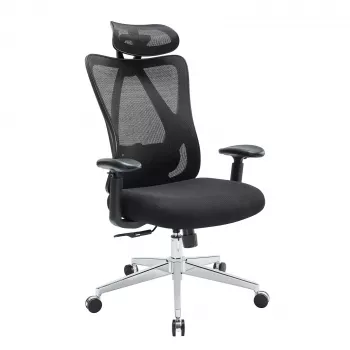
- Ergonomic Mesh Office Chair with Lumbar Support, Adjustable Headrest & 2D Arms ($119.01)
- USB Gaming Microphone with RGB, Mute Button & Gain Control for PC/PS5/PS4 ($74.97)
- Plush Geometric Area Rug ($45.51)
FAQ
How should lumbar support feel when it is set correctly?
It should fill the natural curve of the lower back without pushing the pelvis forward. If you feel a sharp pressure point, numbness, or increased arching, reduce the lumbar depth or reposition it slightly.
Do 2D armrests matter for typing and desk work?
Yes. Height and width adjustments help keep forearms supported while shoulders stay relaxed, which can reduce neck and shoulder tension during long keyboard sessions.
Is a mesh back good for long hours compared to a padded chair?
Mesh often stays cooler and provides consistent support over time, while padded chairs can feel softer initially but may trap heat. The better option is the one that fits your body and can be adjusted to keep you in a neutral posture.










Leave a comment